Guide · Agent Builder
From Website to Working Agent: Create Your First Personalized AI Agent
Give OpenBrain your website, describe your ideal agent and pick a language. We build the knowledge base and the flow, and you get an agent ready to test in chat.
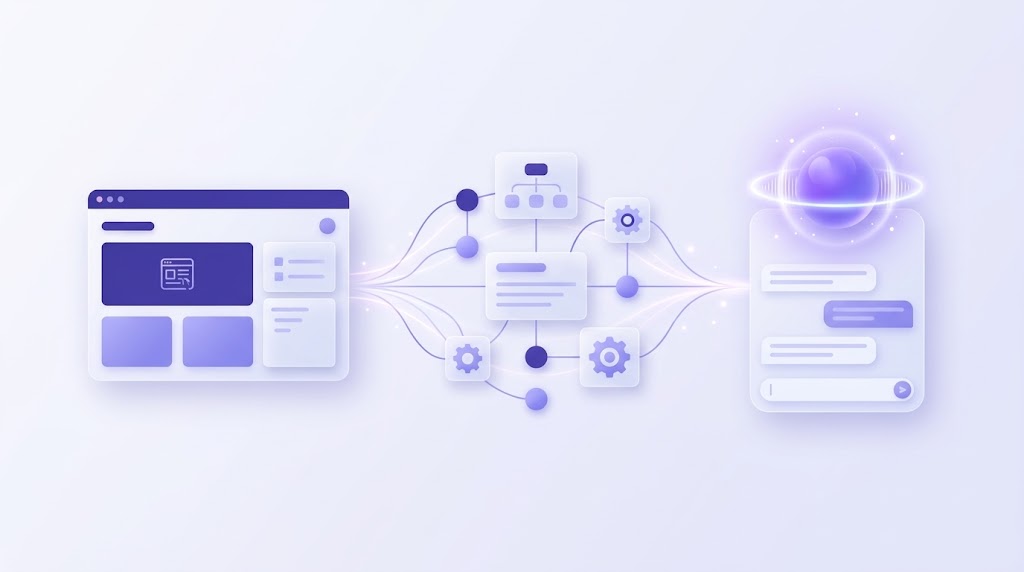
You don’t need a project plan, a developer or a week of workshops to meet your first AI voice agent. You need a website, a few sentences about the agent you want, and a language. Everything else, from your account to the knowledge base and the conversation flow, is prepared for you.
Here is the whole journey, from the first field in the Agent Builder to a first test chat.
At a glance
- Enter your website
- Describe your perfect agent
- Choose the language
- Sign in or register
- We set up your organization and project
- We build your knowledge base from your website
- We build the conversation flow
- Test your agent in chat
Step 1: Your website, the source of truth about your business
The first field asks for your website address. It’s optional, but it’s the single most useful thing you can give us.
Your website already says who you are: what you sell, how your services work, your opening hours, your prices, your policies and the questions your customers ask all day. OpenBrain treats it as the source of truth about your business, so the agent answers from facts you published yourself instead of guessing.
A few tips for the best result:
- Use your main address. The home page of your company site works best, for example
https://yourcompany.com. - Keep the site current. The agent will repeat what your pages say, so fix an outdated price or phone number there first.
- No website? No problem. Leave it empty and describe your business in the prompt instead.
Step 2: The prompt, where you describe your perfect agent
Next, write in plain language who your agent is and what it should do. This is the personality and the job description in one place, and it has room for up to 300 characters, so every word counts.
A good description answers three questions: Who is the agent? What does it handle? What should it do when it can’t help?
Here are a few examples to start from:
- “You are a helpful customer support agent for Acme Corp. Handle billing inquiries, returns, and general product questions.”
- “You are a clinic receptionist. Book, move and cancel appointments, and confirm insurance details.”
- “You are a friendly sales assistant. Qualify callers, answer questions about our plans, and book a demo.”
Notice what they have in common: a clear role, a short list of tasks, and a tone. Start there, and add the details that make the agent yours: your company name, the tone you want (warm, formal, brief) and the cases that should go to a person.
You’re not locking anything in. You can refine the agent’s behavior later, as often as you like.
Step 3: The language your agent speaks and answers in
Choose the language your callers speak. The agent understands them in that language and answers in it, with a natural voice and natural phrasing.
OpenBrain works in English, Macedonian, Serbian, Croatian, Albanian and French, and we train models for more languages based on customer needs. If your customers speak a language that isn’t on the list yet, tell us.
Step 4: Sign in or register
Once the form is filled in, press Generate agent. You’re taken to the OpenBrain platform, where you sign in, or create a free account if this is your first time.
Your answers travel with you. You don’t have to type the website, the prompt or the language again after you log in.
Step 5: We create your organization and project
After you log in, we set up the workspace your agent lives in:
- An organization, the home for your company, your team and your settings.
- A project, the container for this agent, its knowledge and its conversation flow.
You don’t configure anything here. It’s ready for you, and your team can be added later when you want to work on agents together.
Step 6: We build your knowledge base from your website
Now OpenBrain reads your website and turns what it finds into a knowledge base for your agent: the facts, services, policies and answers that your pages contain, organized so the agent can find the right one in the middle of a conversation.
This is what makes the agent specific to your business. A general-purpose assistant can talk about “opening hours” in general. Your agent knows your opening hours.
Step 7: We build your conversation flow
With the knowledge ready, we build the conversation itself. Your prompt becomes a visual flow in BlockFlow, OpenBrain’s block-based designer. It holds the prompts, the branches, the guardrails and the rules for handing a call to a person.
The flow is not a black box. You can open it, read it, and change anything:
- reword what the agent says,
- add a branch for a new type of request,
- set exactly when a conversation should go to a human.
Changes take effect without a software release, so improving the agent is something your own team can do in an afternoon.
Step 8: Your agent is ready. Test it in chat
The last step is the best one. Your agent is ready, and the test chat is where you meet it: open it and talk to your agent, just as you would in any chat window.
Try it the way a real customer would:
- Ask the questions you hear most often.
- Ask something tricky, or something the agent shouldn’t answer.
- Change your mind halfway through, or ask the same thing in a different way.
Every conversation shows you something. If an answer is wrong or missing, you know where to fix it: the website, the prompt or the flow. Make the change, chat again, and watch the agent improve.
Chat is the fastest way to test, because you can try ten conversations in a few minutes. It also isn’t the end of the road. The same agent can later be set up to take phone calls, so what you tested in chat is what your callers will talk to.
What happens next
The test chat is the first step. From here you can:
- refine the flow and the knowledge base until the agent handles your top questions well,
- configure the agent for calls, and connect it to your phone system so it answers real callers,
- bring in your own systems, so it can check an order or book an appointment during the conversation,
- keep a person in the loop, with live supervision and a clean handoff to your team.
Ready to meet your agent? Open openbrain.io, add your website, describe the agent you want and press Generate agent.